

GRAB MY FREE TRAINING
The No Leaks Funnel

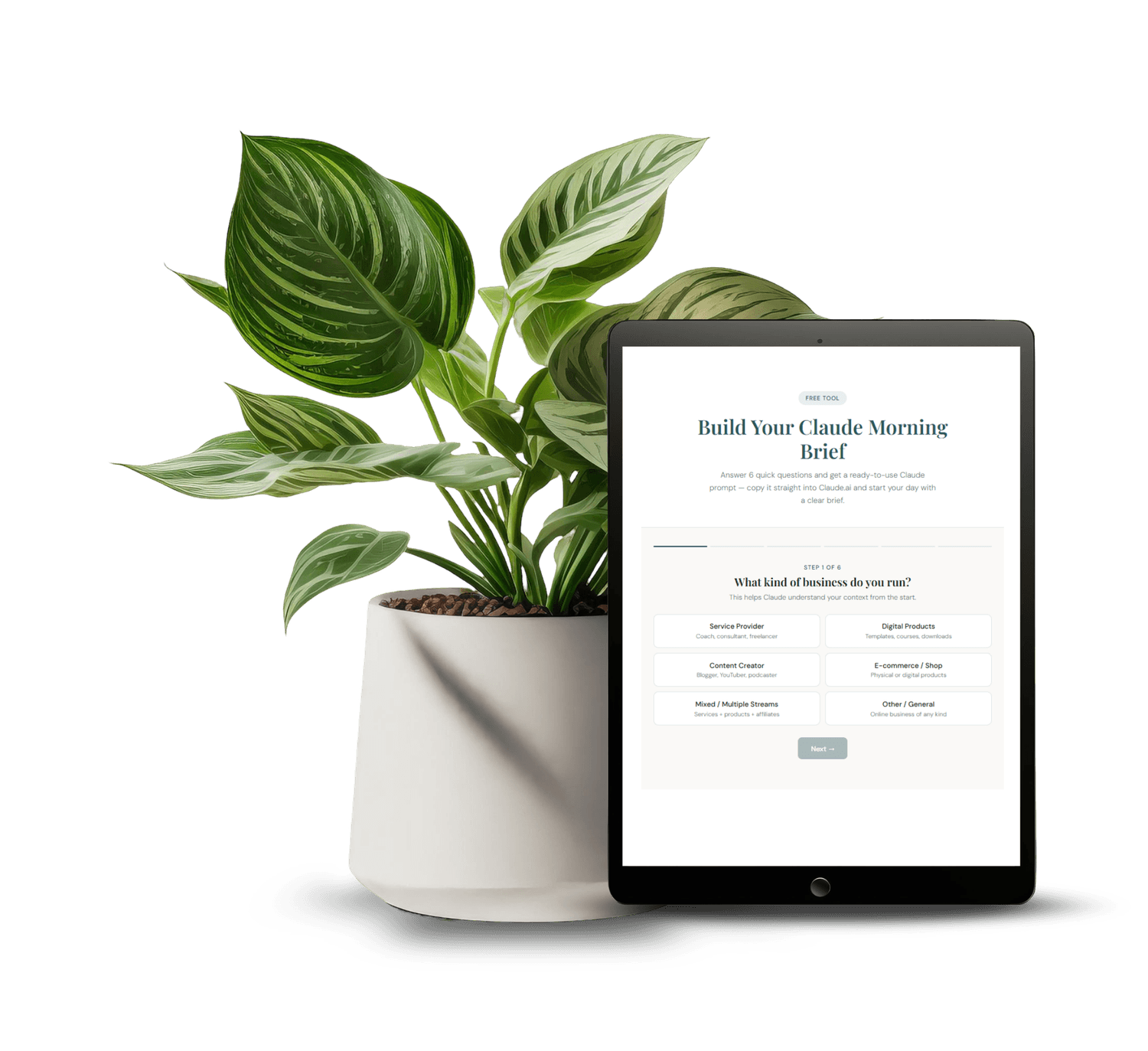
GRAB MY FREE APP
Morning Brief Claude AI Prompt
Set-up your custom morning brief for Claude
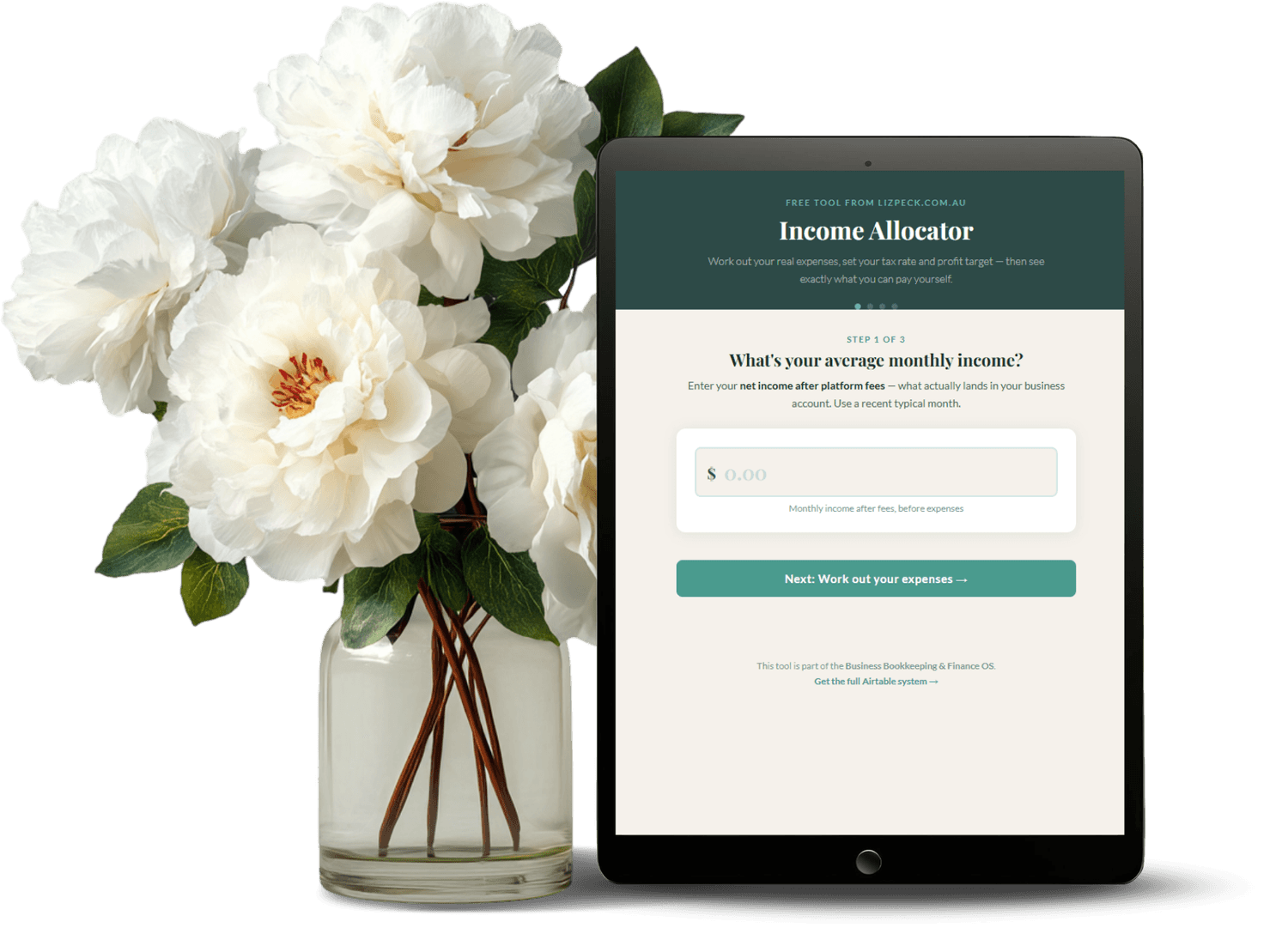
GRAB MY FREE APP
Income Allocator
Work out how to break down your income properly with percentages
How to Set Up an Opt-In Page in Systeme.io (From Scratch in Under an Hour)
An opt-in page is where someone exchanges their email address for something you're offering for free. A checklist, a guide, a template. They fill in their details, and in return you send them the freebie and they join your list.
Systeme makes this straightforward. You don't need design skills and you don't need to be technical. The whole thing sits inside your Systeme account alongside your email list, so when someone opts in they're automatically added without any separate integrations.
If you've been putting off building your list because the setup felt complicated, here's exactly how to do it.
What an Opt-In Page Actually Does
An opt-in page has one job. It convinces someone to hand over their email address in exchange for something useful. There's no shop, no checkout, no navigation. Just the offer and the form.
The page is part of a funnel in Systeme. A funnel is a series of steps, and for an opt-in setup you usually have two: the opt-in page itself and a thank-you page they land on after they submit.
The best opt-in pages have a clear headline, a short description of what they get, and a form. That's it.
Setting Up a Funnel in Systeme
Log into Systeme and go to Funnels in the left menu. Click Create a new funnel and choose Build an audience as the goal. Give it a name related to your freebie.
You'll be asked to add a funnel step. Choose Opt-in page as the step type. This is the page your subscriber sees before they submit their email.
From here you'll edit the page to match your freebie. The funnel keeps the opt-in and thank-you page together so you can see how they connect.
Building the Opt-In Page
Once you've created the step, click Edit page to open the drag-and-drop editor. You can start from a template or blank. Blank is more flexible but templates are faster if you're new to this.
The things you need on the page: a headline that states what they get, a short line or two about what it does for them, and an opt-in form. The form in Systeme automatically connects to your email list.
Update the button text to something specific, like Send Me the Checklist rather than just Submit.
Setting Up the Thank-You Page
After someone submits the form they land on the thank-you page. This is where you let them know the freebie is on its way to their inbox.
Keep it simple. Check your inbox for the email with your free resource, and a sentence about what to expect from you going forward. You can include a low-key product mention here if it's relevant.
The thank-you page is a step in the same funnel. Add it by clicking Add a step and choosing Thank-you page.
Adding the Freebie Delivery Email
Go to the Automations tab inside your funnel and set a trigger of Opt-in page subscribed. The action is Send a campaign email, where you add the email that delivers the freebie link.
If your freebie is a PDF or Google Doc, include the direct link in the email. If it's a Canva template, include the template link and a short instruction on how to use it.
Make the delivery email short. Give them the thing you promised, remind them what it's for, and tell them what you'll be sending in the coming days.
Connecting Your Opt-In to Your Email List
When someone submits the opt-in form in Systeme, they're automatically added to your email list. You don't need to do anything extra. The funnel and the list are already inside the same platform.
What you can do is set up a tag so you know which freebie they opted in for. In the automation rules, add an action to Add a tag after they subscribe. Name the tag after your freebie.
I recommend setting up one tag per lead magnet from the start. It makes segmentation much easier later.
What to Check Before You Go Live
Before you share the link, go through the full opt-in journey yourself. Fill in the form with your own email, make sure you land on the correct thank-you page, and check that the delivery email arrives with the right link.
Check that the opt-in form captures both a first name and email address. You'll use the first name to personalise your emails.
Also check the page on a phone. Most opt-ins happen on mobile and Systeme's editor shows you a mobile preview in the top bar.
Driving Traffic to Your New Opt-In Page
Building the page is the easy part. Getting people to it is where the work actually lives. If you're writing blog content, add the opt-in link inside relevant posts where it makes sense contextually.
Pinterest is another solid option especially if your freebie has a visual element. Pin directly to your opt-in page, not your homepage.
For a broader picture of what an all-in-one platform for digital product sellers can do once your opt-in is running, that post covers how Systeme connects everything together.
Getting Your First Opt-In
Once the page is live, tell someone about it. Share it in your Instagram bio, add it to your email signature, mention it in a story. The first opt-in always feels like proof it's working.
From there, the work shifts to building the email sequence that follows the freebie delivery and warms subscribers toward your product.
Getting your opt-in page live is the foundation. Once it's done, you'll wonder what took so long.
FAQ
What is an opt-in page in Systeme?
An opt-in page in Systeme is a landing page inside a funnel where visitors exchange their email address for a free resource. It connects directly to your Systeme email list with no extra integrations required.
Do I need a paid Systeme plan to set up an opt-in page?
No. The free plan on Systeme includes funnels and opt-in pages. You can have a fully functional opt-in setup without paying anything.
How long does it take to build one?
About 30 to 60 minutes for a basic opt-in page, including the thank-you page and delivery email.
What should I offer as a freebie?
Something specific and immediately useful. A checklist, a short guide, a Canva template, a resource list. It should solve a small problem your ideal customer has right now.
Can I have multiple opt-in pages in Systeme?
Yes. You can create as many funnels as you need, each with its own opt-in page and freebie. Use tags to keep track of who signed up for what.
Disclaimer: This website may contain affiliate links. If you click a link and make a purchase, I may receive a small commission at no extra cost to you.
Disclaimer:
This website may contain affiliate links. If you click a link and make a purchase, I may receive a small commission at no extra cost to you.

About Liz Peck
Liz Peck helps online business owners build the backend that runs without them - using Airtable for operations, Systeme for sales, and Claude AI for the work you hate doing twice. lizpeck.com.au
Disclaimer:
This website may contain affiliate links. If you click a link and make a purchase, I may receive a small commission at no extra cost to you.