

GRAB MY FREE TRAINING
The No Leaks Funnel

GRAB MY FREE APP
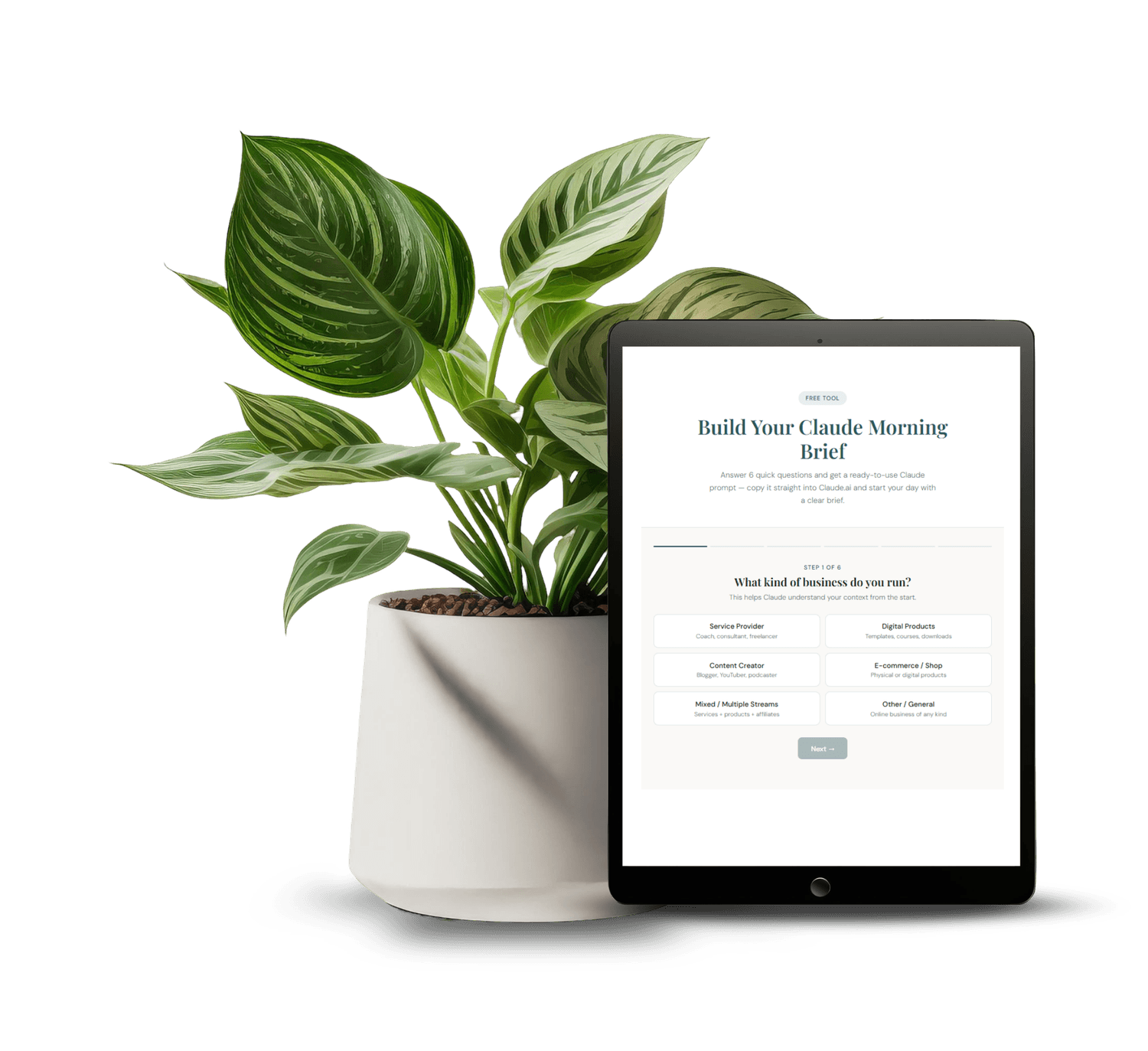
Morning Brief Claude AI Prompt
Set-up your custom morning brief for Claude
GRAB MY FREE APP
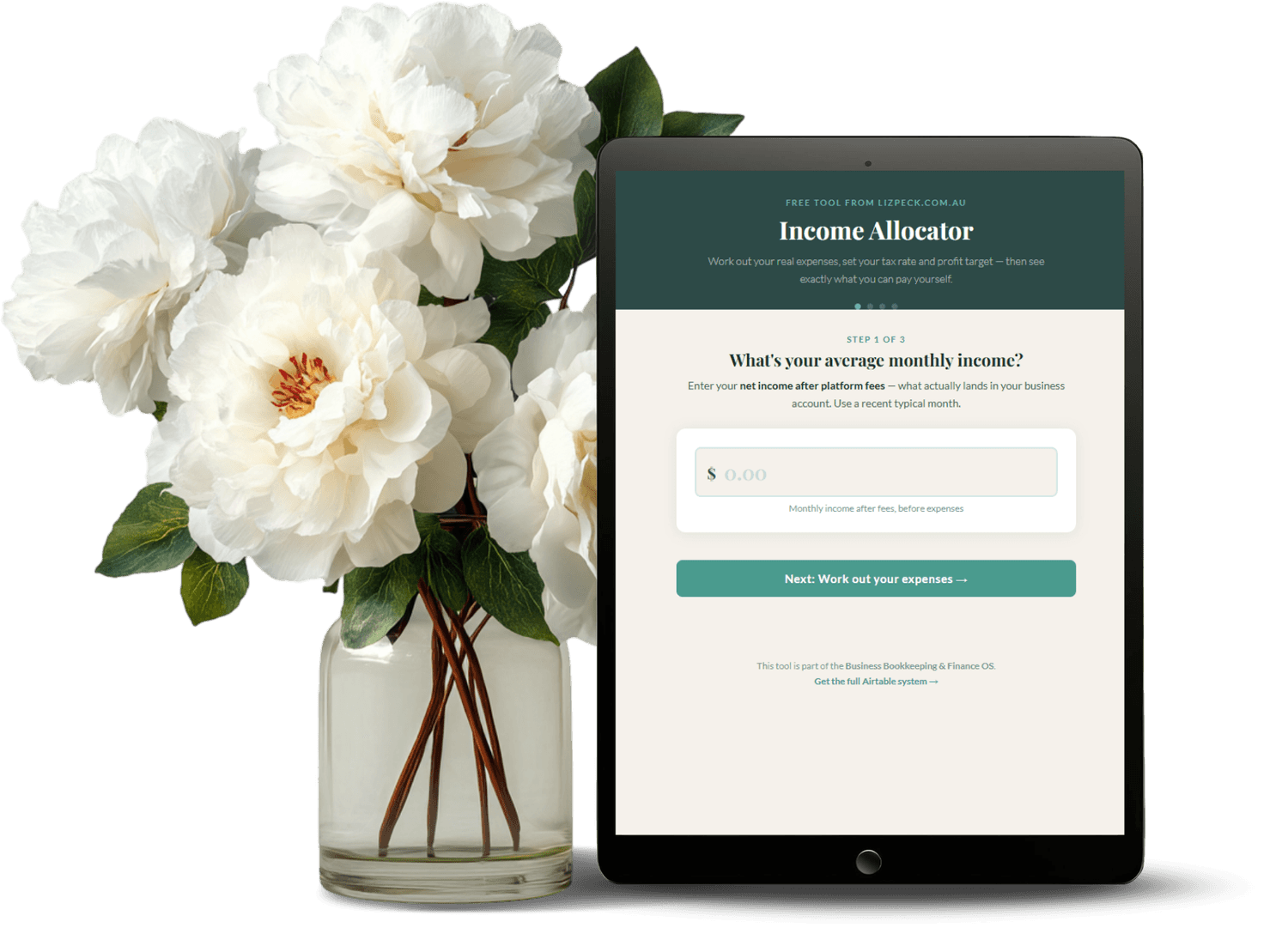
Income Allocator
Work out how to break down your income properly with percentages
Airtable Interface Designer: How to Build a Business Dashboard That Actually Works
Airtable's Interface Designer lets you build custom dashboards that sit on top of your existing data - without needing to know how to code. If you've got data scattered across multiple Airtable tables and you want one clean view to run your business from, this is the feature that makes it possible.
I use Interface Designer to run my entire business OS. Instead of flipping between tabs and trying to remember what's where, I have one dashboard that shows me my active tasks, upcoming content, revenue for the week, and open helpdesk tickets. It took a few hours to set up and I haven't had to think about where anything lives since.
Here's exactly how to use it.
What Is Airtable Interface Designer?
Interface Designer is a feature inside
Airtable that lets you create visual, interactive dashboards from your base data. Instead of looking at raw tables full of records, you design a layout with charts, lists, record detail pages, and summary stats - tailored to how you actually work.
It's like building a mini app on top of your spreadsheet. You control what shows up, who can see it, and what actions people can take from that view.
Who Actually Needs Interface Designer?
You need it if you are managing any kind of repeating workflow - content calendars, client projects, product builds, finances. Raw table views are fine when you are just starting out, but once your base has hundreds of records across a dozen tables, you spend more time navigating than actually working.
I built my first interface after about six months of running my business out of Airtable. Before that, I was scrolling through long filtered views trying to find what was relevant today. The interface cut that down to one screen.
The Building Blocks of an Interface
Every interface is made up of elements you drag onto a canvas. The main ones you will use are: record lists (shows filtered records from a table), record detail pages (lets you click into a record and see all its fields), charts (revenue over time, tasks by status, etc.), summary numbers (total revenue, task count, etc.), and buttons (trigger automations or navigate to another page).
You can have multiple pages inside one interface - one for your weekly dashboard, one for reviewing content, one for client-facing views, etc.
How to Set Up Your First Interface
Start simple. Go to your Airtable base, click Interfaces at the top, then New Interface. Choose a blank canvas or pick a template.
The first thing I recommend is a record list connected to your most important table - whatever you are managing most actively right now. Set filters so it only shows relevant records (e.g. status = In Progress). Then add a summary element above it showing how many records are in that filtered view.
That alone is more useful than a raw table for day-to-day work.
Building a CEO Dashboard with Interface Designer
A proper CEO dashboard shows you everything that matters without having to dig. Mine has four sections: tasks due this week, content scheduled for the next 7 days, this month's revenue vs. target, and open support tickets.
Each section pulls from a different table in the same base. That is one of the things Interface Designer does well - you are not limited to one table per interface. You can pull data from across your whole base and surface it in one place.
If you want a done-for-you version of this, the CEO Control Centre comes with pre-built interfaces already set up so you are not starting from scratch.
Using Filters and Conditions
Filters are what make interfaces actually useful. Without them, you are just looking at all your data. With them, you are looking at what matters right now.
You can filter by field value (e.g. assignee = me, status = active), by date (due in the next 7 days), or by linked record. You can also set conditions that update dynamically - so your Due Today list does not need to be manually updated, it just reflects whatever records match that filter.
Get into the habit of asking: what do I need to see right now? Then build a filter that shows only that.
Sharing Interfaces with Team Members or Clients
One of the underrated features of Interface Designer is the sharing controls. You can share an interface with someone who has view-only access - meaning they can see the data in your base without being able to edit anything in the underlying table.
This is useful if you have a VA, a contractor, or a client you need to give visibility to. They get a clean, simple view. They do not have to navigate your whole base. And they cannot accidentally mess up your data.
Common Mistakes to Avoid
The biggest mistake I see is trying to build too much too soon. People add 10 pages, 20 elements, custom colours, the works - and then never open the interface because it is overwhelming.
Start with one page, three elements. Use it for a week. Then add what is missing. The best interfaces are the ones you open every single day because they give you exactly what you need.
Also: do not forget to set your interface as the default view. You can pin it so it is the first thing that opens when you go to your base.
Interface Designer vs. Other Airtable Views
Airtable already has grid, calendar, gallery, and Kanban views. Why add interfaces on top of those? Because views are for managing data - interfaces are for using data.
Views are where you do the admin work of updating records, adding new ones, sorting and filtering. Interfaces are for your daily check-in, your weekly review, sharing summaries with others. They serve different purposes and are both worth having.
Think of the views as your backend and the interface as your front desk.
FAQ
Is Airtable Interface Designer free?
Interface Designer is available on paid Airtable plans. The basic features are included in the Plus plan. Some advanced features require higher tiers. Check the current Airtable pricing page for the latest plan details.
How long does it take to build an interface?
A basic interface with one or two elements takes about 20-30 minutes. A full CEO dashboard with multiple pages and filtered lists took me a few hours to build and tweak. Once it is set up, you will not need to touch it often.
Can you use Interface Designer without coding?
Yes. It is entirely drag-and-drop. No formulas, no scripts, no code. You just choose your elements, connect them to your data, and set your filters.
Do interfaces update automatically?
Yes. They pull live data from your base. If a record is updated, the interface reflects the change immediately. Nothing needs to be manually refreshed.
Can I use Interface Designer for client reporting?
Yes. You can share a view-only version of any interface with clients or contractors. They see a clean, professional-looking dashboard without getting access to your full base.
Disclaimer: This website may contain affiliate links. If you click a link and make a purchase, I may receive a small commission at no extra cost to you.
Disclaimer:
This website may contain affiliate links. If you click a link and make a purchase, I may receive a small commission at no extra cost to you.

About Liz Peck
Liz Peck helps online business owners build the backend that runs without them - using Airtable for operations, Systeme for sales, and Claude AI for the work you hate doing twice. lizpeck.com.au

Disclaimer:
This website may contain affiliate links. If you click a link and make a purchase, I may receive a small commission at no extra cost to you.